Incidents & Escalations
Incidents are the core of onduty.sh. An incident represents a problem that needs attention—usually a service outage or a critical alert.
Incident Lifecycle
An incident goes through three states:
- Triggered (Red): A new alert has come in. The escalation policy is running, and people are being notified.
- Acknowledged (Yellow): A user has seen the alert and "claimed" it. This stops the escalation policy—no more people will be proactively notified.
- Resolved (Green): The issue is fixed.
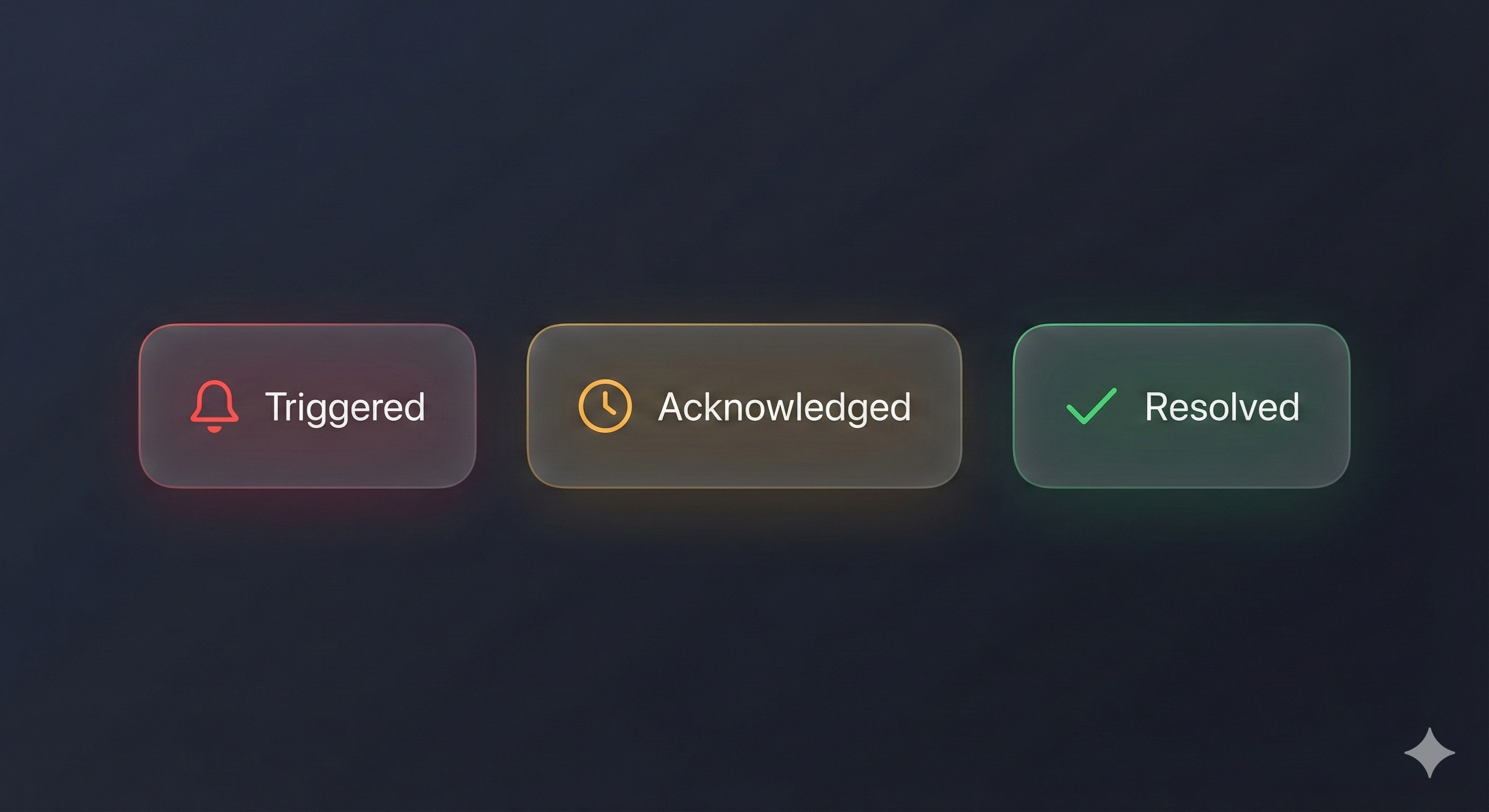
The three states of an incident.
Escalation Policies
An Escalation Policy determines who gets notified and when. It's a set of rules that execute in order.
How it works
When an incident is triggered on a Service:
- The system looks at Rule 1 of the Service's Escalation Policy.
- It notifies the target (User or Schedule) immediately.
- It waits for the specified Escalation Timeout (e.g., 15 minutes).
- If the incident is not Acknowledged or Resolved by then, it moves to Rule 2.
- This repeats until the policy is exhausted.
Configuring a Policy
Go to Escalation Policies > New Policy.
- Rule 1: The first line of defense. Usually the primary On-Call Schedule.
- Rule 2: The backup. Usually a secondary Schedule or a Manager.
Rule 3: The safety net. Usually the entire team or a senior engineer.
Rule 3: The safety net. Usually the entire team or a senior engineer.
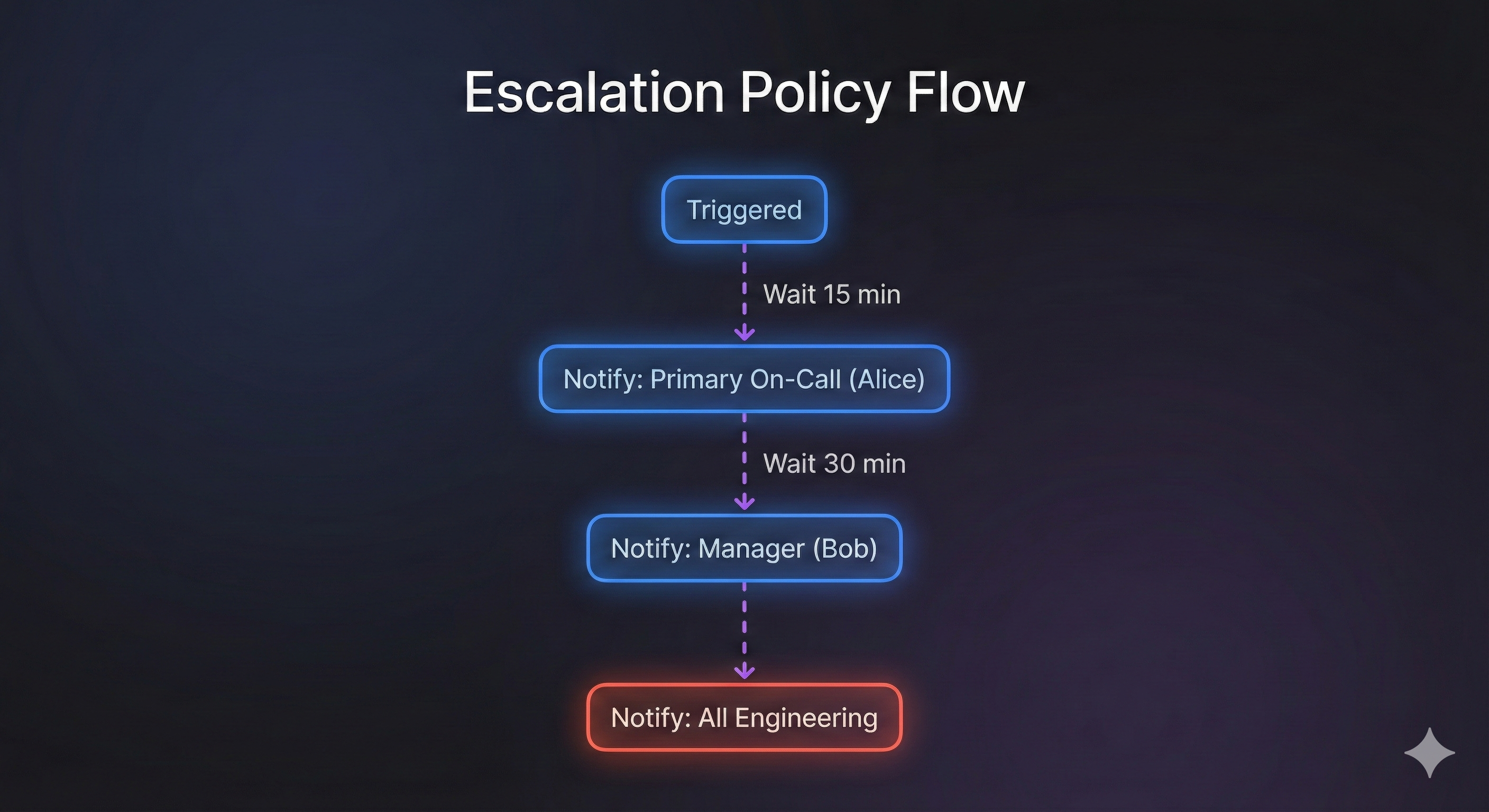
Visualizing an Escalation Policy flow.
Troubleshooting Alerts
"I set everything up, but I didn't get the call!"
If you aren't receiving alerts, check the following:
- Is the Incident Triggered? Check the Dashboard. If it's not there, the integration might be failing (check your Integration Key).
- Is the Service linked to an Escalation Policy? Go to the Service settings and ensure an Escalation Policy is selected.
- Is the Schedule Active? View the Schedule calendar. Is someone actually on-call right now?
- Is your Phone Number Verified? Check your Profile settings. You must verify your number to receive calls/SMS.
- Did you Acknowledge it? If you (or someone else) acknowledged the alert, the escalation stops immediately.
Notification Methods
Users can configure how they want to be notified in their Profile.
- Phone Call: Automated voice call. "Press 4 to acknowledge, 6 to resolve."
- SMS: Text message with a link.
- Email: Standard email notification.
- Slack: (Coming Soon) Interactive messages in Slack.
Managing Incidents
You can manage incidents from:
* The Dashboard
* The Incident Detail Page
* SMS/Phone responses
Postmortems
After an incident is resolved, you can write a Postmortem to document:
* What went wrong?
* How was it fixed?
* What will we do to prevent it happening again?
This is crucial for building a resilient engineering culture.